

Best Elementor hover effect plugin options deliver the interaction your page needs without adding unnecessary scripts or confusing visitors. Some sites need a simple image overlay, while others need animated cards, flipbox content, or button feedback. Compare the exact effect, editor controls, responsive behavior, and accessibility before installing another addon.
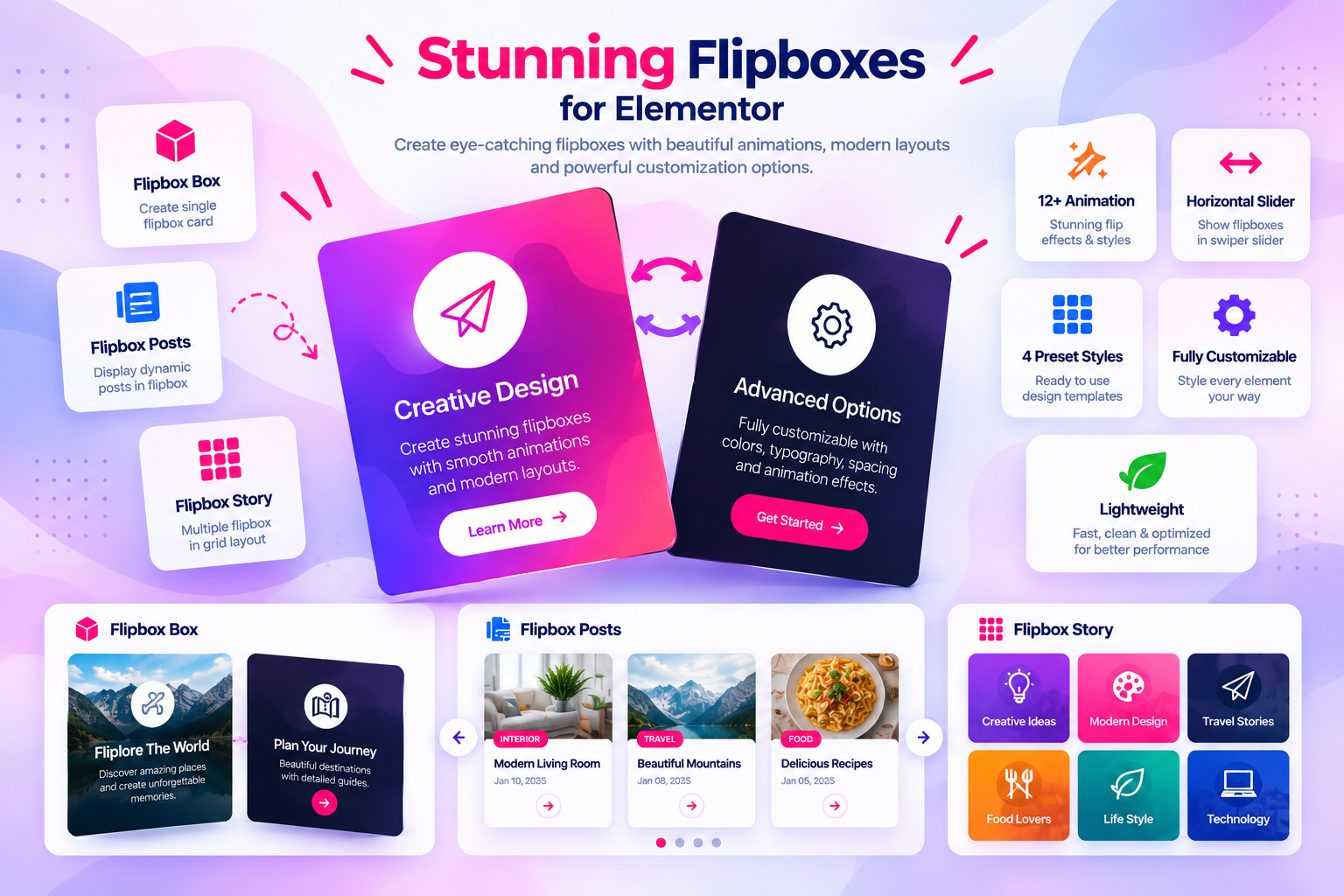
Table of Contents
best Elementor hover effect plugin: Features to Compare
When comparing the best Elementor hover effect plugin, first list the page types and visitor actions you need to support. Check whether the solution works with your current editor, whether content can be updated without rebuilding every card or translation, and whether the controls are understandable to the people who maintain the site.
Do not judge a plugin only from its demo. Build a small test page with realistic content, longer headings, links, images, and mobile breakpoints. Confirm that the best Elementor hover effect plugin handles keyboard navigation and touch input, preserves readable contrast, and does not make important information available only after an animation.
Also consider maintenance. Review update history, compatibility notes, support documentation, and the effect of enabling extra modules. For a commercial site, estimate the full cost including paid extensions, external API usage, hosting, and the time needed to maintain the workflow.
A practical evaluation of the best Elementor hover effect plugin should include a failure test. Disable a connected service or remove optional content and check whether the page still works gracefully. For translation workflows, review the translated page in context; for interactive cards, check both faces and every link before publishing.
How to Test best Elementor hover effect plugin
Use the official documentation and product reference to verify current compatibility and supported features. For this comparison, record the test result for each shortlisted option rather than assuming that similarly named features behave the same way.
How we evaluated the options
This guide is intended to help readers choose a tool for a particular use case, not to declare one product universally best. Compare the current plugin versions using the same test site and workflow. Check each vendor’s official documentation and pricing page immediately before publication because features, plan limits, and prices can change.
- Effect type: do you need a flip card, image overlay, reveal animation, or button interaction?
- Editor controls: can content and styling be changed without custom code?
- Touch behavior: does the interaction work without a mouse hover?
- Accessibility: can users reach and understand the revealed content?
- Performance: are scripts and styles loaded only where needed?
- Plan limits: is the required widget free or paid?
Plugins and tools worth comparing
1. Flipbox Addon for Elementor by Dragwyb
A focused Elementor addon for animated flip cards with Ultimate Flipbox, Post Flipbox, and Story Flipbox widgets. Evaluate it when the interaction is specifically a front/back card.
2. Essential Addons for Elementor
A broader widget suite to compare for interactive content and hover-oriented widgets. Verify current widget availability and plan restrictions.
3. Premium Addons for Elementor
A general Elementor addon collection to evaluate for hover and animation controls. Check whether the exact effect you want is included.
4. The Plus Addons for Elementor
A larger Elementor widget suite to compare for interactive content, image effects, and layout options.
5. Ultimate Addons for Elementor
A broad page-builder enhancement suite. Evaluate the total widget set and performance impact rather than selecting it for a single effect alone.
Where Dragwyb fits
The official Flipbox documentation explains widget types, content controls, animation, styling, and responsive preview steps.
How to choose the right option
- Choose a dedicated flipbox widget for front/back content cards.
- Choose a broad addon suite when you need several different effects.
- Use subtle animation and maintain readable contrast.
- Provide a usable touch and keyboard interaction.
- Measure page performance after enabling addon widgets.
Final recommendation
Do not install a large addon suite just to add one hover effect unless you expect to use its other widgets. For front/back cards, compare a focused solution such as Flipbox Addon for Elementor with the flipbox widgets in broader Elementor suites.
Frequently asked questions
Should I choose the plugin with the most features?
Not necessarily. Choose the tool that covers your required workflow with the least unnecessary complexity.
Should I compare free and paid plans separately?
Yes. Record which features are available in the free version, which require an upgrade, and whether external service costs apply.
How often should this comparison be updated?
Review it at least quarterly and whenever a major product release, pricing change, or compatibility change affects the comparison.
Practical considerations for best Elementor hover effect plugin
Start by identifying the exact interaction: image zoom, overlay reveal, animated heading, button transition, or a front-and-back flip card. A plugin that excels at one effect may not include the controls needed for another. The best Elementor hover effect plugin should match the design requirement instead of forcing every section into the same animation.
Check how effects behave when the pointer leaves the element, when a keyboard user focuses a link, and when a visitor opens the page on a touch screen. Avoid effects that make text unreadable, shift surrounding content unexpectedly, or delay access to the main call to action.
Performance also matters. Test the page with the addon enabled and disabled, inspect whether it loads assets on pages that do not use its widgets, and check for layout shifts. If you only need one flip card, a focused widget can be a better fit than installing a large collection of unrelated effects.
When evaluating the best Elementor hover effect plugin for a production site, test the same widget at desktop, tablet, and mobile breakpoints. Confirm that animation speed, overlay contrast, spacing, and link behavior remain consistent after responsive settings are changed.
Accessibility should be treated as part of the effect rather than an optional polish step. Make sure text remains available to assistive technology, focus indicators are visible, and the interaction does not depend entirely on a mouse hover. Respect reduced-motion preferences where the effect includes movement.
Finally, compare the maintenance cost of each addon. Check whether the effect depends on a separate animation library, whether scripts load globally, and whether the widget remains stable after Elementor updates. A smaller, focused solution can be easier to maintain than a large addon bundle.
