
A WordPress AI chatbot knowledge base helps an assistant answer questions about your own products, services, policies, documentation, and support processes. Instead of relying only on general model knowledge, the chatbot can retrieve relevant information from selected website sources and use it to prepare a more useful response. This guide explains how to configure, test, and improve that workflow.
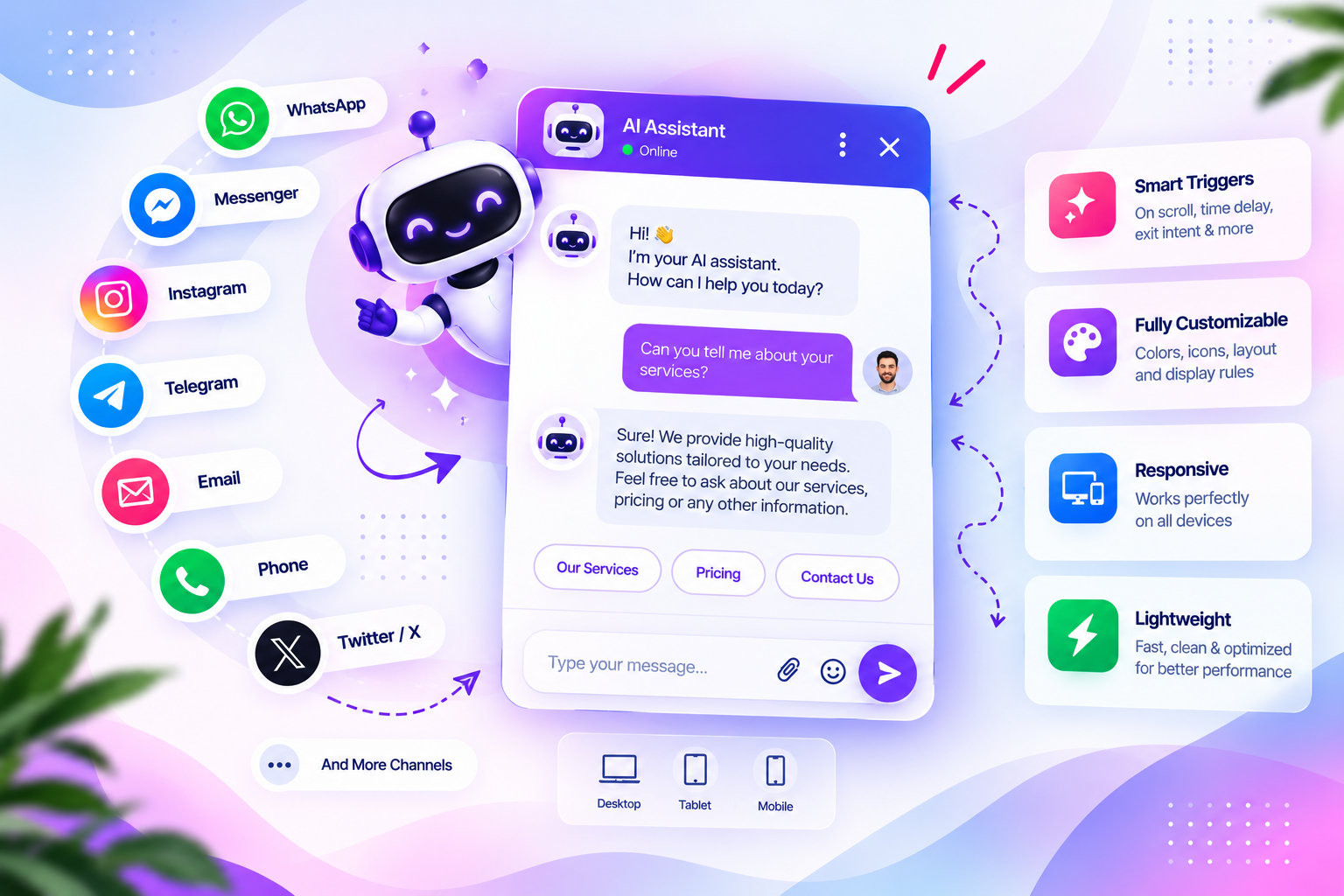
Before enabling a WordPress AI chatbot knowledge base for visitors, decide which content it can use, how often sources are refreshed, and what the assistant should do when it cannot find a reliable answer.
This guide explains the knowledge-base workflow behind a WordPress AI chatbot, what to configure before enabling it for visitors, and how to test whether its answers are grounded in your website content. The examples refer to the AI Assistant and knowledge-base capabilities documented for Dragwyb Click to Chat. Exact settings and available sources can vary by installed version.
Table of Contents
WordPress AI Chatbot Knowledge Base: How It Works
A chatbot knowledge base is a collection of information that the assistant can search when a visitor asks a question. Instead of relying only on the model’s general training, the assistant retrieves relevant information from indexed content and uses it to prepare a response. Dragwyb’s documentation describes retrieval-based answers from indexed WordPress content and source links that let visitors open referenced pages.
How retrieval helps a chatbot answer from your website
A retrieval-based workflow typically has two stages. First, selected content is prepared and indexed so it can be searched. When a visitor asks a question, the system retrieves relevant passages and supplies them as context for the AI model. The model then generates an answer using that context and its configured instructions.
Retrieval does not guarantee that every answer will be correct. The result depends on whether the relevant information was indexed, whether the question matches that information, the quality of the retrieved material, and the model’s response behavior.
Prepare useful website information
Before enabling a chatbot, review the content that visitors are likely to ask about. Prioritize accurate, current pages rather than indexing every page without review.
- Product and service descriptions that reflect the current offer.
- Documentation and setup guides that explain real workflows.
- Frequently asked questions and troubleshooting articles.
- Shipping, refund, privacy, and support policies where appropriate.
- Clear contact and escalation instructions for questions the chatbot cannot resolve.
Remove outdated instructions and check that private, internal, or customer-specific information is not exposed as public knowledge content. A chatbot knowledge base should contain material that is appropriate to share with site visitors.
Configure the AI Assistant
In Dragwyb Click to Chat, the AI Assistant is a separate module from Social Channels and Support Center. Start by opening Click to Chat → Settings → General and enabling the module you intend to use. Then open Click to Chat → AI Assistant to review the chatbot settings and AI engine and prompt configuration. The documentation notes that the visible sections can vary with configuration and installed version.
- Confirm that the AI Assistant module is enabled.
- Connect a supported provider and model using credentials issued by that provider.
- Review the assistant instructions and response settings.
- Configure the available knowledge-base sources and indexing options in your installation.
- Use the preview and logs available in the AI Assistant screen to inspect behavior.
For the exact module setup, see the Click to Chat setup guide and the AI Assistant and Response Behavior documentation.
Test answers before making the chatbot available
Create a small test set based on real questions visitors might ask. Include questions whose answers are clearly present in your content, questions that require combining information from more than one page, and questions for which the website has no answer.
- Ask a direct question about a documented feature and verify the answer against the source page.
- Ask a question using different wording to check whether retrieval still finds the relevant information.
- Ask about a topic that is not covered and confirm the assistant does not invent a policy or feature.
- Check whether source links lead to the correct public pages.
- Repeat tests after updating important documentation or changing provider settings.
Improve weak or inaccurate responses
When an answer is poor, investigate the retrieval path before changing every prompt setting. Check whether the relevant page is indexed, whether the content actually answers the question, whether the retrieved passage is relevant, and whether the provider connection is working. Dragwyb’s FAQ specifically recommends checking provider connectivity, enabled features, knowledge-base indexing, retrieval settings, and errors when the assistant returns no answer.
See the Click to Chat troubleshooting FAQ for documented checks. If a visitor needs human assistance, configure an appropriate support handoff rather than expecting the chatbot to resolve every request.
Connect chatbot conversations to support and lead capture
An AI assistant can be one part of a larger customer communication workflow. Dragwyb Click to Chat also documents a Support Center for ticket-based requests and a conversational lead-capture workflow. Lead capture can collect configured visitor details, save a lead record, calculate a score, and optionally send an email notification or dispatch a configured webhook. These workflows must be enabled and configured separately.
Read the Support Desk and Ticket Lifecycle guide and Lead Capture and Qualification guide before relying on those workflows.
Final checklist
- Use accurate, public-facing content as knowledge sources.
- Connect and test the selected AI provider.
- Review assistant instructions and retrieval settings.
- Test supported questions and questions outside the knowledge base.
- Check source links and escalation behavior.
- Re-test after changing content or plugin configuration.
To explore the documented modules and setup paths, visit the Dragwyb Click to Chat feature overview.
For background on how WordPress plugins are built and maintained, see the official WordPress Plugin Developer Handbook. For AI provider costs, check the OpenAI API pricing page before estimating ongoing usage.
A WordPress AI chatbot knowledge base is most useful when its sources are accurate, current, and relevant to the questions visitors actually ask.
Before you publish a WordPress AI chatbot knowledge base, test questions against the indexed pages and check whether answers include the correct source context.
A WordPress AI chatbot knowledge base should have clear limits: if the retrieved material does not answer a question, the assistant should say so or route the visitor to support.
Review the WordPress AI chatbot knowledge base after documentation, product, or policy changes so outdated information does not remain available to the assistant.
