

A WhatsApp chat button in WordPress gives visitors a direct way to start a conversation with your business. This guide covers number setup, greetings, visibility rules and mobile testing.
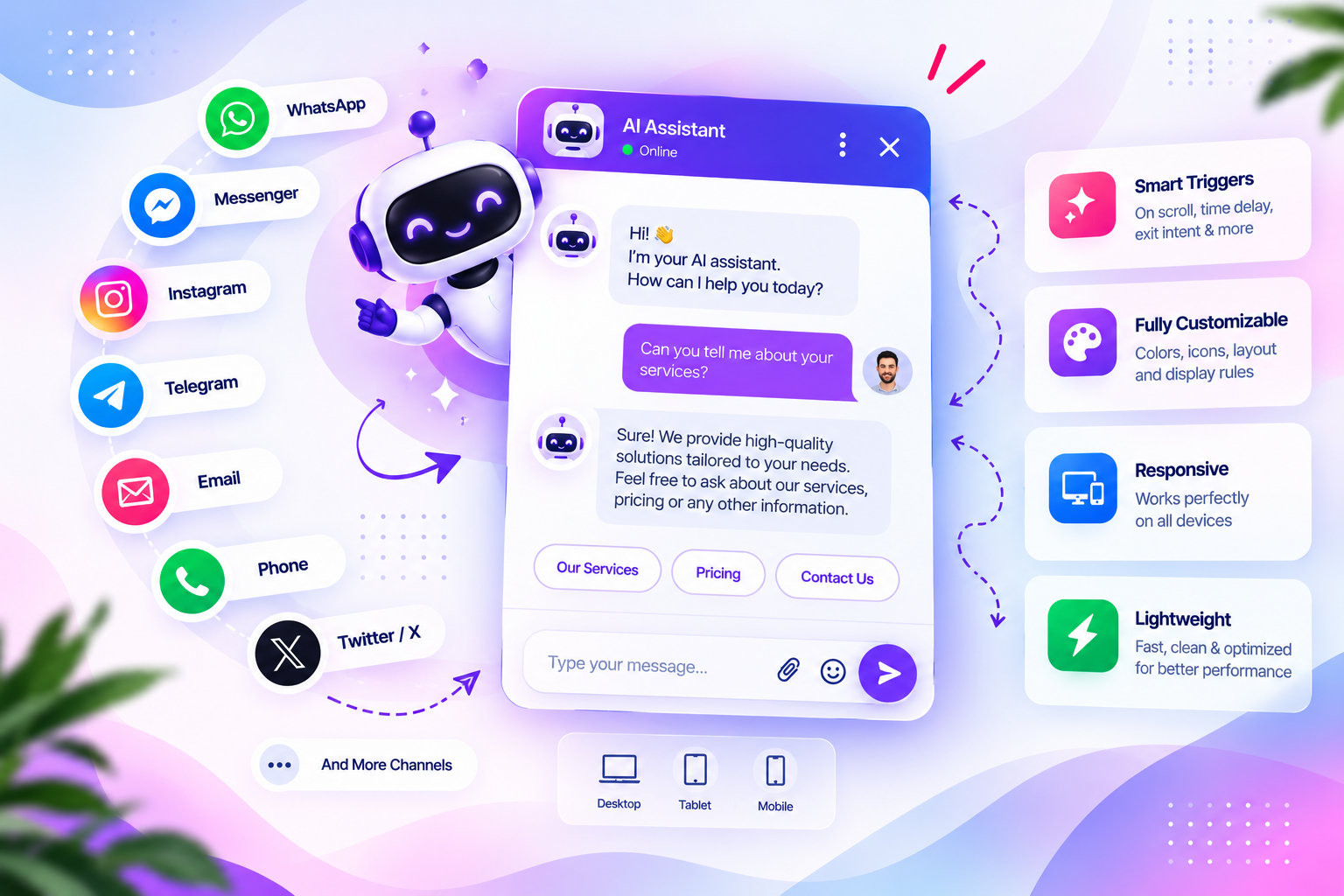
WhatsApp chat button in WordPress
A well-configured whatsapp chat button in wordpress gives visitors a direct route to contact your business. Use a valid business number, a clear greeting and sensible display rules.
WhatsApp chat button in WordPress is the focus of this guide. Use the practical steps below to configure the right solution, check compatibility and test the experience on your WordPress website.
WhatsApp chat button in WordPress
A well-configured WhatsApp chat button in WordPress should make it easy for visitors to start a conversation with your business. Check that the number, greeting and display rules match the way your team handles enquiries.
Adding a WhatsApp chat button to WordPress gives visitors a direct way to start a conversation with your business. Instead of searching for your phone number or opening a contact page, they can click a floating button and continue in WhatsApp.
This can be useful for service businesses, online stores, agencies and support teams that already communicate with customers through WhatsApp.
Why add a WhatsApp button to your WordPress website?
- Direct contact: Visitors can start a conversation without filling out a long contact form.
- Mobile-friendly communication: A tap can open the WhatsApp app on supported devices.
- Contextual enquiries: A prefilled message can help visitors explain what they need.
- Visible contact option: A floating widget can keep a contact route available while visitors browse.
Method 1: Use a WordPress click-to-chat plugin
A dedicated plugin is a practical option if you want to manage the button from WordPress rather than manually adding a link to every page.
Step 1: Choose and install a plugin
Choose a maintained plugin that supports your required channels, visibility rules and mobile behavior. Review its permissions, update history and compatibility before activating it on a production website.
Step 2: Add your WhatsApp number
Enter the phone number in the international format required by the plugin. Check its instructions about country code, spaces and punctuation. Use a business number that your team can monitor.
Step 3: Configure the greeting or prefilled message
A short greeting can tell visitors what kind of help they can request. A useful prefilled message might include a simple enquiry such as, “Hello, I have a question about your services.” Avoid asking visitors to share sensitive personal or payment information in an initial chat.
Step 4: Choose where the button appears
Decide whether the widget should appear across the site or only on selected pages. Consider hiding it on pages where it could cover important controls or interfere with a checkout or form.
Step 5: Test on desktop and mobile
Click the button on a desktop browser and a mobile device. Confirm that it opens the expected WhatsApp destination, that the number is correct, and that the prefilled message is readable.
Using Dragwyb Click to Chat
Dragwyb Click to Chat combines social contact channels with optional AI assistant and support-center modules. Its Social Channels Widget can provide visitor contact options such as WhatsApp and other supported channels.
To configure the social widget, install and activate Dragwyb Click to Chat, enable the Social Channels Widget module, and configure the channels and layout you intend to use. Add the WhatsApp destination details, choose the widget behavior and visibility settings, save the configuration, and test the visitor-facing result.
Official setup guides:
- Install Dragwyb Click to Chat.
- Enable the Social Channels Widget module.
- Configure the floating widget and social channels.
- Control widget visibility.
Method 2: Add a simple WhatsApp link manually
If you only need a text link rather than a floating widget, you can create a link using WhatsApp’s click-to-chat format. Use your full international phone number in the format required by WhatsApp, without spaces or punctuation, and URL-encode any prefilled message.
For example, a simple link can be added to a button in your page builder. Test the destination before publishing and make sure the number belongs to the intended business account.
Best practices for WhatsApp chat buttons
Make the button easy to find but not intrusive
Use a familiar icon and a clear label. Keep the widget away from cookie notices, sticky navigation, checkout controls and other important page elements.
Set realistic response expectations
If your team is not available around the clock, explain your usual response hours. A visible chat button should not imply instant support if nobody is monitoring the inbox.
Use page-specific messages thoughtfully
A product page can use a relevant enquiry prompt, while a service page can invite questions about a consultation. Keep messages short and avoid including private visitor data in URLs.
Consider privacy and consent
When visitors click a WhatsApp link, they move to a third-party service. Make sure your privacy notice explains the communication channel and avoid collecting sensitive information unnecessarily.
Common problems and how to fix them
The button does not appear
Check that the plugin module is enabled, the widget is saved, the current page is included in visibility rules, and the selected device is allowed. Clear page or browser caches if the change does not appear.
The wrong WhatsApp number opens
Review the saved number and international dialing code. Test the destination link directly before relying on the widget.
The widget covers other content
Adjust its position or visibility rules. Check sticky headers, cookie banners, mobile navigation and checkout interfaces at common screen widths.
Frequently asked questions
Can I add a WhatsApp chat button without a plugin?
Yes. You can add a click-to-chat link to a WordPress button or text link. A plugin is more convenient when you need a floating widget, multiple contact channels or visibility controls.
Does a basic WhatsApp click-to-chat link need the WhatsApp Business API?
A simple click-to-chat link does not require a WhatsApp Business API integration. More advanced automated messaging workflows may have different requirements.
Should the WhatsApp button appear on every page?
Not necessarily. Site-wide visibility is convenient, but page-specific rules can prevent the widget from interfering with important interactions.
Final thoughts
A WhatsApp chat button can make it easier for website visitors to contact your business. Choose a setup that fits your support workflow, configure the correct number, keep the widget unobtrusive and test it on real devices.
If you want WhatsApp alongside other social contact channels, an AI assistant and a support-center workflow, explore Dragwyb Click to Chat.
Related plugin and official documentation
For additional form capabilities, see Dragwyb Click to Chat and its official WordPress.org plugin listing.
For the underlying platform guidance, consult the WhatsApp Help Center.
Related plugin and official resource
Explore Dragwyb Click to Chat and review its official WordPress.org plugin listing. For WhatsApp account and messaging guidance, consult the WhatsApp Help Center.
