

Contact Form 7 not sending email? This guide walks through the mail configuration, sender address, SMTP transport and authentication checks that can help identify the cause.
Contact Form 7 not sending email
If Contact Form 7 not sending email, check the form’s Mail settings, sender address, WordPress mail transport and domain authentication in a logical order. Test after each change so you can identify the cause.
When Contact Form 7 is not sending email, the form may still appear to work. A visitor submits a message, sees a success notice, but the email never arrives in your inbox. In other cases, the form displays an error immediately after submission.
The important thing is to identify where the failure occurs. Contact Form 7 prepares the message and passes it to WordPress mail handling. Delivery then depends on your site’s mail configuration and the receiving email provider.
1. Check the Contact Form 7 Mail settings
Open the affected form in WordPress and review its Mail settings. Check the recipient address, subject, message body and any mail-tags used in the template. A misspelled recipient or invalid mail-tag can prevent the expected message from being delivered.
2. Use an address from your own domain in the From field
A common configuration mistake is using the visitor’s submitted email address as the sender. That can conflict with domain authentication and receiving-server policies.
Use an address on your website’s domain as the From address. Put the visitor’s email address in the Reply-To header so you can respond to the person who submitted the form.
3. Check the spam and quarantine folders
Search the recipient inbox, spam folder and any business email quarantine. If messages are arriving in spam, review the sender domain’s authentication and reputation rather than repeatedly changing the form fields.
4. Configure authenticated SMTP
WordPress sites often rely on the server’s default mail transport. Delivery can be unreliable when hosting restrictions or email-provider policies interfere. An SMTP plugin or transactional mail service can route messages through an authenticated mail account.
Use the SMTP provider’s official host, port and encryption instructions. Do not copy settings from an unrelated provider or disable TLS verification to make a connection work.
5. Check SPF, DKIM and DMARC
These DNS records help receiving mail servers evaluate whether a message is authorized and authenticated. Follow the instructions from your email provider and avoid publishing multiple conflicting SPF records. DNS changes may take time to propagate.
6. Test WordPress email separately
Use your SMTP plugin’s test-email feature or another controlled test to determine whether WordPress can send mail outside the Contact Form 7 form. If the test email also fails, investigate the mail transport and provider configuration first.
7. Check whether a security or spam filter is blocking submissions
Contact Form 7 integrations, spam protection services, firewalls and security plugins can affect form submissions. Review their logs and test with a known-good submission. Do not disable security protections on a production site without a controlled test and a plan to restore them.
8. Review plugin conflicts and recent changes
If the problem started after an update, check the update history and test the form on a staging site. Review PHP errors, browser console errors and network responses. A plugin conflict can affect form processing even when the mail configuration is correct.
9. Submit a real test and verify delivery
Test with an email address you can access. Confirm that the form validates, displays the expected result, and that the message reaches the destination inbox. Also test the visitor’s Reply-To address and any secondary notification email configured in the form.
Quick troubleshooting checklist
- Recipient address is correct.
- From address belongs to your domain.
- Visitor email is placed in Reply-To.
- Mail-tags in the message template are valid.
- Spam and quarantine folders have been checked.
- Authenticated SMTP is configured when required.
- SPF and DKIM instructions from the mail provider have been followed.
- Security and spam-filter logs have been reviewed.
- A fresh test submission has been delivered successfully.
Does Contact Form 7 save submissions if email fails?
Do not assume that a form submission is stored permanently just because a visitor clicked Submit. Contact Form 7 does not provide a general-purpose submission inbox by default. If you need an archive, evaluate a compatible database extension and test its access controls, retention and export behavior.
When should you contact your hosting or email provider?
Contact the provider when SMTP authentication fails, outbound connections are blocked, DNS authentication records are unclear, or server logs show a transport-level error. Share the error message and timestamp, but do not send passwords, API keys or other credentials.
If you are still dealing with Contact Form 7 not sending email after checking the Mail tab, isolate the delivery path before changing more settings. Send a test message through authenticated SMTP, inspect the provider’s logs and compare the result with the server’s mail log if available. When Contact Form 7 not sending email affects only one form, compare its recipient and mail-tags with a form that works.
When troubleshooting Contact Form 7 not sending email, keep a short record of each test, the error shown and any change made to the mail configuration. This makes it easier to identify whether the issue comes from the form, WordPress mail delivery or the email provider.
What to record during email troubleshooting
When a test message fails, record the time of the test, the recipient address, the form used and any error shown by WordPress or the mail provider. This information helps separate a form configuration issue from a server-side delivery problem.
- Confirm whether Contact Form 7 displayed a successful submission response.
- Check whether the message reached the SMTP provider’s delivery log.
- Compare the configured From address with an address on your website’s domain.
- Review the recipient inbox, spam folder and quarantine rules.
- Repeat the test after changing one setting at a time.
A successful form response does not always prove that the recipient’s mail server accepted the message. If the SMTP provider reports acceptance but the message is missing, ask the recipient’s email administrator to check filtering and quarantine. Avoid repeatedly changing DNS records without checking the provider’s exact SPF and DKIM instructions.
Final thoughts
If Contact Form 7 not sending email, work through the form settings, sender identity, WordPress mail transport and domain authentication in order. Changing several settings at once makes it harder to identify the real cause. Test after each change and keep a reliable record of important enquiries.
For official plugin guidance, visit Contact Form 7 documentation. For mail delivery, follow the setup instructions from your SMTP or email provider.
Related plugin and official documentation
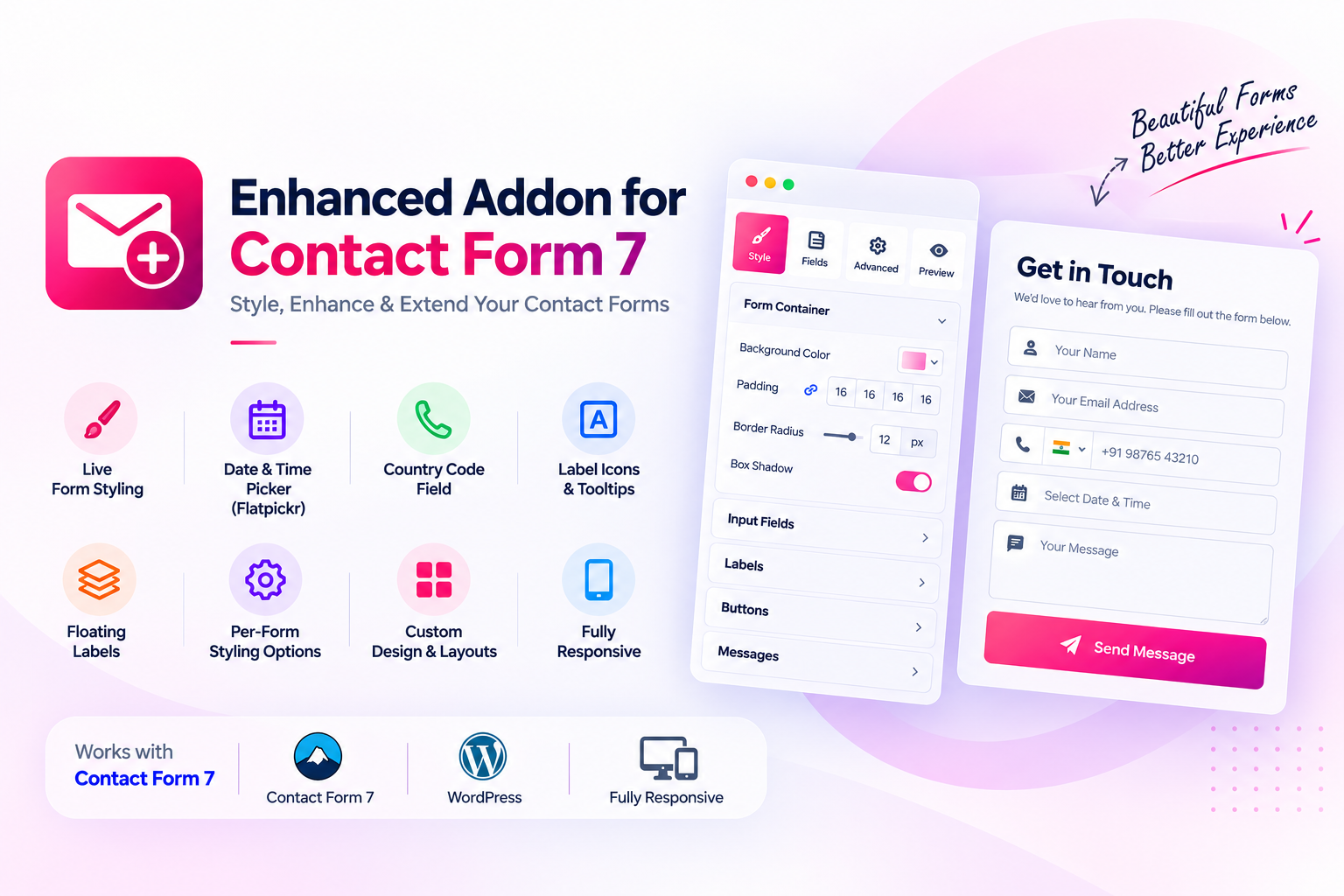
For additional form capabilities, see Enhanced Addon for Contact Form 7 and its official WordPress.org plugin listing.
For the underlying platform guidance, consult the Contact Form 7 mail setup documentation.
