

A Contact Form 7 country code field helps international visitors enter phone numbers with the correct calling prefix. This guide explains setup, formatting, validation and mobile testing.
Contact Form 7 country code
Contact Form 7 country code should make the form clearer and easier to complete. Follow the recommendations in this guide and test the interaction with real form submissions.
Adding a Contact Form 7 country code field can make it easier for international visitors to enter phone numbers.
If your WordPress website receives enquiries from customers in different countries, a basic phone-number field may not be enough. Visitors need to know which country code to use, and your team needs a consistent way to understand the number they submitted.
Adding a country cod
Contact Form 7 country code
Use the steps and checks in this guide to choose an approach that fits your website, then test the result with real form or chat interactions.
Recommended plugin for this workflow
Enhanced Addon for Contact Form 7 provides a related WordPress solution. You can also review its WordPress.org plugin details and advanced information.
e field to Contact Form 7 can make international phone-number entry clearer. This guide explains the basic phone field, what a country-code addon should provide and how to test the result.
Why add country code support to a Contact Form 7 phone field?
Phone numbers are not formatted the same way in every country. A number entered without a country calling code may be difficult to identify, especially when a business serves visitors internationally.
A country-code selector can help visitors choose the correct calling code and reduce ambiguity in the contact details your team receives.
Step 1: Add a phone field in Contact Form 7
Open Contact → Contact Forms in your WordPress dashboard and edit the form you want to update. Contact Form 7 supports telephone form-tags, including required and optional variants.
A basic required telephone field can use a tag like this:
[tel* your-phone]This creates a telephone input, but a basic telephone field does not by itself provide a country selector or automatically handle every international numbering rule.
Step 2: Choose a country-code solution
To add a country selector and calling-code support, use a compatible Contact Form 7 extension. Before installing one, check the supported Contact Form 7 version, how the selected country is stored, whether the calling code is included in the submitted value, and how validation works.
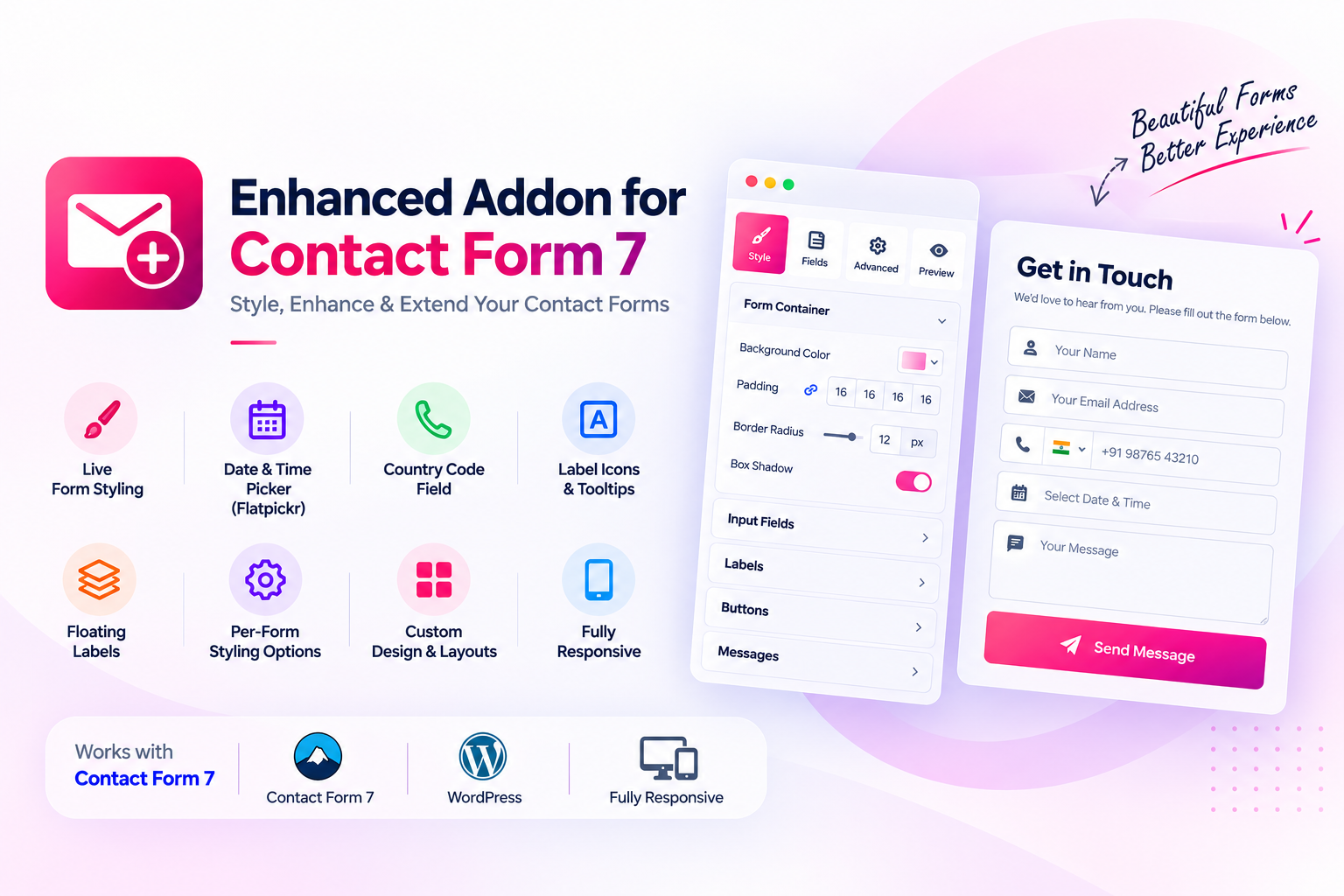
One option is Enhanced Addon for Contact Form 7 by Dragwyb, which supports country code functionality along with floating labels, label tooltips, form styling and live preview.
Find Enhanced Addon for Contact Form 7 on Dragwyb.
Step 3: Configure the country code field
After installing and activating the addon, open the relevant Contact Form 7 form and use the addon’s supported controls to enable or configure country code functionality. The exact control labels and placement can vary by addon version, so follow the instructions shown by the installed release.
Choose the default country only if it reflects the main audience of the form. If your visitors come from multiple regions, make sure they can change the selection easily.
Step 4: Make the phone field clear to visitors
Use a label such as Phone number and provide a short instruction if visitors need to include a number that can receive calls or messages. Do not make the country code selector the only indication of what the field collects.
If your form also uses floating labels or label tooltips, check that the label remains understandable when the field is empty, focused, filled and invalid. Essential instructions should remain visible rather than being available only in a tooltip.
Step 5: Check the submitted phone number
Submit test entries using numbers from more than one country. Confirm that the selected calling code and the local number are represented correctly in the submitted value and notification email.
Do not assume that a country selector guarantees that a phone number is valid or reachable. Phone-number validation depends on the implementation and the numbering rules it supports. If your business needs verified contact details, use an appropriate verification process and explain it to visitors.
Step 6: Test the form on mobile and desktop
- Check that the country selector is easy to open on a phone.
- Confirm that the selected calling code is visible.
- Test keyboard navigation where supported.
- Check long phone numbers and different country selections.
- Submit the form and inspect the notification email.
- Confirm the layout does not overflow on narrow screens.
Common country code field problems
The country selector does not appear
Check that the addon is active, its relevant feature is enabled and the form is using the supported field configuration. Review browser console errors and clear caches after making configuration changes.
The calling code is missing from the email
Check how the addon formats and stores the submitted value. Review the Contact Form 7 Mail template and ensure it references the correct form-tag name.
The number is accepted but cannot be called
A syntactically accepted value is not proof that a number is assigned or reachable. Check the selected country, the local number and the validation behavior provided by the addon.
The phone field is difficult to use on mobile
Check the width of the selector and input, tap target size, keyboard type and how the selected country is displayed. Test on actual mobile devices when possible.
When configuring a Contact Form 7 country code field, test numbers from the countries your audience actually contacts you from. Check whether the selected calling prefix is submitted with the phone number, how the field handles pasted numbers and whether validation accepts international formats. A reliable Contact Form 7 country code setup should make the expected format clear before the visitor submits the form.
Frequently asked questions
Does Contact Form 7 have a built-in country code dropdown?
A basic Contact Form 7 telephone form-tag creates a telephone input. A country selector and additional international phone behavior generally require a compatible extension or custom implementation.
Can I collect phone numbers from different countries?
Yes. Use a compatible country-code solution, allow visitors to select the appropriate calling code and test how the submitted value is stored and emailed.
Is a country code selector the same as phone verification?
No. A selector helps format or identify the country calling code. It does not prove that the visitor owns the number or can receive a message or call.
Can I style the Contact Form 7 phone field?
Yes. You can use custom CSS or a compatible styling addon. Test the selector and input together so the field remains usable on mobile.
Final thoughts
A country code field makes international phone-number collection clearer, but it should be tested as part of the complete form. Check the selected country, submitted value, email notification, mobile layout and validation behavior before using the form for important enquiries.
For a visual enhancement workflow that includes country code support, floating labels, label tooltips, form styling and live preview, explore Enhanced Addon for Contact Form 7 by Dragwyb.
