

Managing a multilingual WordPress website can become a lot of work once you have more than a handful of pages. Every new article, product update or landing page needs attention in each language. If you use Polylang, you already have a way to organise those language versions. The next question is how to prepare translations without copying every paragraph by hand.
This guide explains how Polylang automatic translation works, what you need to set up, and where a human review still matters. It focuses on a practical workflow rather than promising that one click can translate an entire website perfectly. If you are comparing ways to add Polylang automatic translation to your site, start by understanding which part is handled by Polylang and which part comes from a translation integration.
Does Polylang translate content automatically?
Polylang is primarily a multilingual content management plugin. It lets you create languages, connect translated versions of posts and pages, and display language navigation. Automatic translation is a separate capability: it generally comes from an AI translation addon or an external translation service connected to your WordPress workflow. In other words, Polylang automatic translation usually depends on an additional integration to generate the translated text.
That distinction is useful. Polylang manages which page belongs to which language, while the translation integration generates or transfers the translated text. Before choosing an addon, check that it supports the content you actually publish—not just the text inside a standard paragraph.
What you need before enabling automatic translation
- Polylang configured: Add your source and target languages and confirm the language assigned to existing content.
- A compatible translation integration: Check its supported post types, editors, custom fields and metadata.
- An AI provider: API-based services may require an account, credentials and paid usage. Browser-based options have their own compatibility requirements.
- A review process: Decide who checks important translations before they are published.
- A backup or staging site: Test with a small number of pages before processing important production content.
How to set up Polylang automatic translation
1. Configure the languages in Polylang
Open the Polylang language settings and add the languages your visitors need. Choose the correct default language and check a few existing posts. Each source post should have the right language assigned before you create its translated version. You can refer to the official Polylang documentation for language setup and translation management guidance.
2. Choose an addon that fits your editing workflow
Look beyond the phrase “automatic translation” on a plugin page. If your site uses Gutenberg, Elementor, ACF or custom post types, confirm which of those structures the addon can read and translate. Also check whether it preserves block structure, links, images and language relationships. A reliable Polylang automatic translation setup should fit the way your website is actually built, not just translate plain paragraphs.
3. Configure the translation provider
Select a provider supported by your chosen integration. For an API provider, follow its instructions for creating and storing credentials. Do not paste API keys into public page content or share them with editors who do not need access. For example, review the OpenAI API documentation or Gemini API documentation before connecting a cloud provider. For browser-based AI, check the required browser version and whether the translation tab must remain open while work is running.
4. Select the source post and target language
Start with one representative post. Select the language you want to create and check that the integration associates the new version with the correct source post through Polylang. A translation that looks correct but is not connected to its source can create a confusing visitor experience.
5. Review the result before publishing
Read the translated page as a visitor would. Check headings, button labels, image alt text, internal links, forms, dates, currency and product terminology. Make sure links point to the correct language version and that the page does not contain untranslated fragments.
Can you automatically translate an entire WordPress website?
Some integrations provide bulk or queue-based translation for multiple eligible posts and pages. That can save time, but it does not mean every part of a site is automatically covered. Theme strings, plugin interface text, custom database values and complex builder data may need separate handling. When evaluating Polylang automatic translation for a larger website, confirm the supported content types before starting a bulk job.
For a safer rollout, group content into small batches. Translate a few pages, inspect the results, check provider usage and only then increase the batch size. This makes it easier to catch a configuration problem before it affects hundreds of language versions.
Common problems to check
- Missing translated page: Confirm that the target language is enabled and the source post has a language assigned.
- Wrong language relationship: Check that the translated post is connected to the intended source, not an unrelated page.
- Untranslated builder content: Verify that the addon supports the widgets, blocks or custom fields used on that page.
- Broken internal links: Review links after translation and make sure they lead to the matching language version.
- Unexpected provider costs: Check API pricing and usage limits before running a large job.
Where TranslateSense fits into this workflow
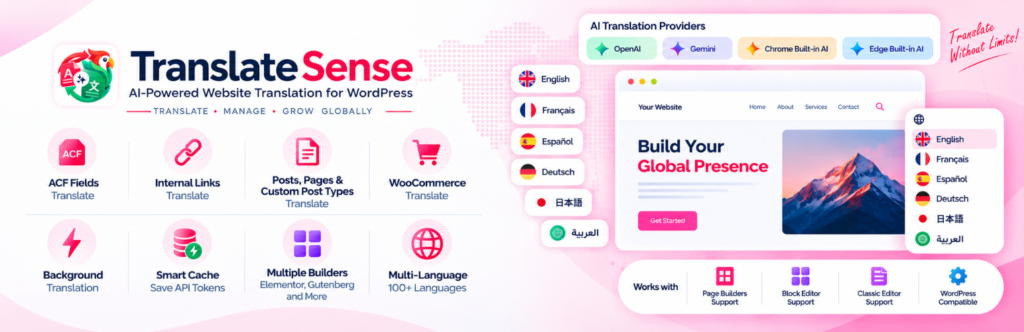
TranslateSense is an AI translation addon built for WordPress sites using Polylang. It aims to bring provider-based translation into the WordPress workflow. If you are considering it for Polylang automatic translation, review the current feature list and setup requirements, then test the content types and providers that matter to your project before using it on a live site.
If you are new to the topic, start with our guide to AI translation for Polylang. You can also learn more about TranslateSense and Dragwyb.
Frequently asked questions
Is Polylang automatic translation built in?
Polylang manages multilingual content and language relationships. Automatic AI translation usually requires a compatible addon or an external translation service.
Will automatic translation publish pages without review?
That depends on the integration and its settings. For important website content, a review step is a sensible default. Check accuracy, formatting, links and local terminology before publication.
Can I translate posts in bulk?
Some addons support bulk or queued translation. Confirm the supported content types and provider limits, then test a small batch before processing a larger site.
Final thoughts
A good Polylang automatic translation workflow is a combination of language management, a compatible translation integration and careful review. Automating the first draft can remove repetitive work, but checking the result is what keeps your multilingual site useful and trustworthy. Start small, verify the language relationships and scale only after the workflow behaves as expected.
