
Gutenberg Elementor content are worth comparing when you want to choose a solution based on real workflows rather than feature lists. This guide reviews the main evaluation points, explains where different tools fit, and highlights what to test before choosing a product. The right option depends on your site, integrations, budget, data requirements, and the level of control your team needs.
If you use Polylang, the language versions still need to be connected correctly. But you also need a translation workflow that understands the way your site stores content. This guide explains what to check when translating Gutenberg blocks and Elementor content and how to test the result without damaging the original layout.
Table of Contents
When teams translate Gutenberg Elementor content, they should verify block attributes, nested widgets, custom fields, and media text as well as the visible page copy. Testing a representative page helps confirm that the translated Gutenberg Elementor content keeps its layout and language-specific links.
Why You Need a Workflow to Translate Gutenberg and Elementor Content
A standard paragraph is usually straightforward: it contains text that can be translated while keeping the paragraph block. Real websites are often more complicated. A Gutenberg block may store visible text in attributes, nested blocks may contain their own content, and a page builder can save widget settings as structured data. A reliable way to translate Gutenberg and Elementor content starts by identifying where each type of text is stored.
This is why two translation tools can produce very different results. One may translate the main post body but leave buttons, image captions or builder widgets unchanged. Another may support selected structures but not every third-party block or custom field. Always check the actual content types listed in the plugin documentation.
What Gutenberg Content Should You Translate?
- Paragraphs and headings: The main text visitors read.
- Lists and quotes: List items, citations and quoted text inside blocks.
- Buttons and links: Button labels and link text, while keeping valid destinations.
- Image information: Captions, titles and alt text when those fields are included in the workflow.
- Nested blocks: Text inside columns, groups, tabs or other parent blocks.
- Block attributes: Text values stored in block settings rather than the block’s visible inner HTML.
One important detail is that some block values come from registered defaults and may not be saved explicitly in the post content. A translation integration needs to understand the block schema and determine which values are actually translatable. Blindly replacing strings in raw block markup can damage the structure or miss content that is not stored there.
Which Elementor Content Can You Translate?
Elementor pages can contain text editors, headings, buttons, image captions, forms, templates and widgets from third-party addons. To translate Gutenberg and Elementor content accurately, a translation tool needs to recognise the supported widget settings and nested element structure.
- Heading and text-editor widget content.
- Button labels and supported link text.
- Image captions, alt text and other supported media fields.
- Text inside nested containers and sections.
- Selected form labels, placeholders and messages, where supported.
- Template content and third-party widget fields supported by the integration.
Do not assume that every Elementor addon is supported just because a translation plugin supports Elementor. Before you translate Gutenberg and Elementor content at scale, check the widget types and settings the integration can read. A custom widget may store its text in a field that a general-purpose translator does not know about.
How to Translate Gutenberg and Elementor Content Step by Step
1. Make a staging copy
Use a staging site or a backup that you can restore. Choose a representative page containing the blocks, widgets and custom fields used most often on your website. This gives you a realistic test without putting live content at risk.
2. Check the source and target language relationship
Confirm that Polylang recognises the source language and that the translated page is connected to the correct original. Check the language switcher and the translated page URL after the test.
3. Compare the editor and frontend
Open the translated page in the editor and inspect the frontend. Look for missing text, duplicated sections, broken buttons, changed spacing and untranslated widget labels. A page can look fine in the editor but still have a problem on the public frontend.
4. Check links, media and SEO fields
Make sure internal links point to the correct language version. Review image alt text and captions, then check the translated SEO title and meta description if your workflow supports them. Do not translate a URL slug without checking redirects and existing links.
5. Test Custom Fields When You Translate Gutenberg and Elementor Content
If your site uses ACF or another custom-field plugin, test the field types you rely on. Text, textarea and WYSIWYG fields are different from relationship, image, repeater or flexible-content fields. Confirm exactly which field values are eligible for translation and which should remain unchanged.
Common Problems When You Translate Gutenberg and Elementor Content
- Some text stays in the source language: It may be stored in an unsupported widget, attribute or custom field.
- The layout changes after translation: Check whether the integration preserved block or builder structure rather than replacing the whole content string.
- Buttons point to the wrong page: Review internal links and language-specific destinations.
- Custom fields are missing: Check field configuration and the translation plugin’s supported field types.
- Repeated translations waste provider usage: Use a workflow that can reuse saved translations when the source content has not changed, if that feature is available.
Can AI Translate Gutenberg and Elementor Content Automatically?
Yes, some AI translation integrations support selected Gutenberg blocks and Elementor widgets. The important word is “selected”: support varies by plugin, block type, widget, field and version. Ask for a clear compatibility list and test the exact elements used on your site.
AI is useful for preparing a first translation, but it cannot guarantee that every layout, link or field is correct. When you translate Gutenberg and Elementor content with AI, review the result in context, especially for product information, legal wording, checkout flows and other content where a mistake can affect visitors.
Translate Gutenberg and Elementor Content with TranslateSense and Polylang
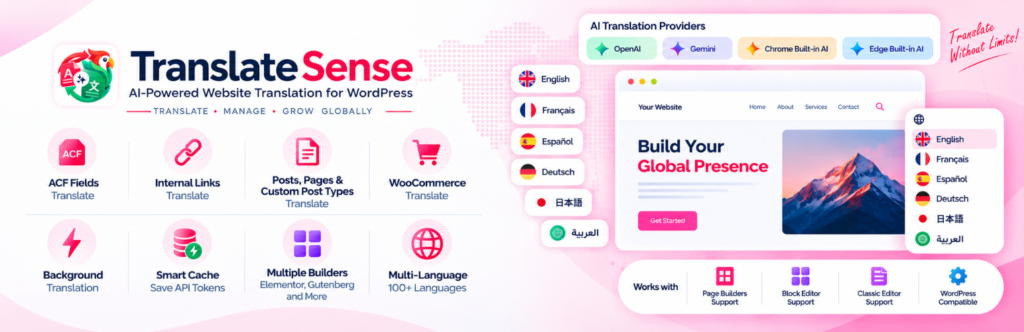
TranslateSense is designed as an AI translation addon for WordPress websites that use Polylang. If you are evaluating it for a Gutenberg, Elementor or custom-field workflow, compare the current plugin documentation with the content structures on your site. Test your required blocks and widgets on staging before translating a large number of pages.
Provider pricing and free allowances depend on the current service, account and model. For example, review the official OpenAI API pricing and Google Gemini API pricing before relying on a free allowance for ongoing website translation.
For a broader overview, read our guide to AI translation for Polylang and our setup guide to Polylang automatic translation.
Frequently asked questions
Does Polylang translate Gutenberg blocks?
Polylang manages language versions. Translating the text inside Gutenberg blocks generally requires a compatible translation workflow or manual editing. The integration must support the block content and attributes involved.
Can Elementor pages be translated automatically?
Some translation integrations support Elementor content, but widget coverage varies. Check whether the integration supports the specific Elementor widgets and third-party addons used on your pages.
Will translating a page change its design?
A well-designed workflow should preserve the page structure, but unsupported data or incorrect content replacement can cause layout issues. Always compare the translated editor view and frontend before publishing.
Final Tips to Translate Gutenberg and Elementor Content
Translating a WordPress site means handling the content structure as well as the words. Gutenberg blocks, Elementor widgets, custom fields, links and SEO metadata may all need different treatment. The safest way to translate Gutenberg and Elementor content is to choose an integration based on the tools your site actually uses, test a representative page and review the public result before scaling up.
When you translate Gutenberg Elementor content, check both the editor data and the rendered page. Gutenberg blocks can store text in attributes, while Elementor widgets keep settings in structured element data.
A reliable workflow for Gutenberg Elementor content should preserve links, media references, block attributes, and widget settings instead of performing broad replacements on raw markup.
For additional guidance, consult the official reference and documentation when checking compatibility, setup requirements, and current capabilities.
Gutenberg Elementor content: Features and Checks That Matter
When comparing Gutenberg Elementor content, start by writing down the exact task you want to solve. A basic requirement may need only a lightweight plugin, while a larger workflow can require integrations, team permissions, reporting, and dependable support.
Test Gutenberg Elementor content with the same realistic scenario on each shortlisted product. Record setup time, the number of steps required, whether the result is reliable, and what happens when information is missing or a connected service is unavailable.
Review the total cost of Gutenberg Elementor content, not just the advertised starting price. Check paid extensions, usage limits, external API charges, hosting requirements, agent seats, and the effort needed to maintain integrations over time.
Security and privacy should be part of your evaluation of Gutenberg Elementor content. Check what data is sent to third-party services, how access is restricted, whether logs contain personal information, and how administrators can revoke integrations or user permissions.
Before selecting one of these Gutenberg Elementor content, verify current compatibility, documentation, update history, and support options. Features and plan limits can change, so confirm important claims on the vendor’s official site before relying on them.
